Working with boxes
Boxes are the nouns of a logic map. Each one is a thing that happens at a stage. Keep them short. A good box is something you can read at a glance from a metre back.
Adding a box
From the column header, use the + Add box control to create a new empty box at the bottom of the column. The box opens for editing immediately.
Editing a box
Hover a box and the edit controls appear. Click Edit to open the box panel. There are three text areas:
- Heading. The main label. Always rendered in bold. Keep it short, six words or fewer is a good rule of thumb.
- Sub-text. Optional supporting line under the heading. You can stack multiple sub-text entries to create grouped sub-headings inside one box; this is the trick to reducing the total number of boxes on a map.
- Alignment. Left, centre or right alignment for the box text. Mix-and-match alignments tend to look messy; pick one for the whole map and stick with it.
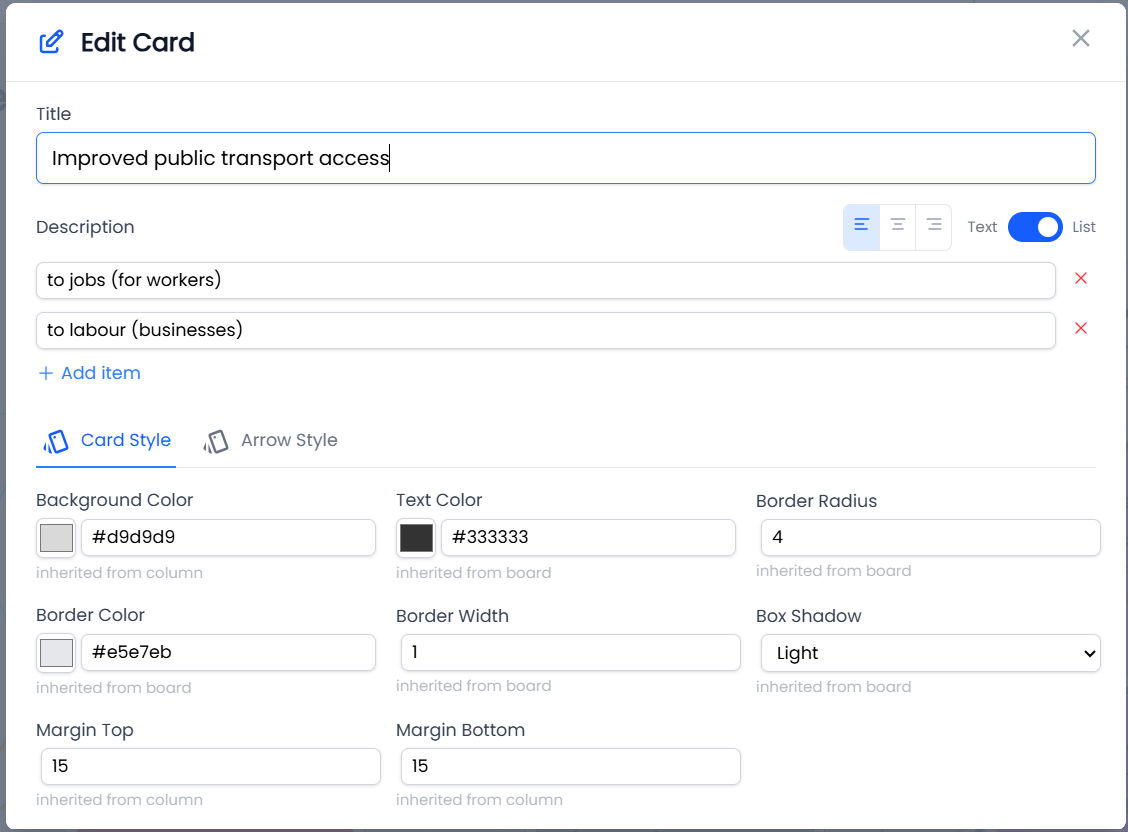
Box colours
By default a box inherits the column’s box colour and text colour. Override them on the box itself when you want it to stand out: a critical input, a dependency, a risk. Recently used colours are remembered, which keeps a map’s palette consistent.
Spacing
Each box has a top and bottom spacing override. Use these sparingly to balance column heights: increase spacing in a short column so it visually matches a tall one next to it. For most boxes the column default is enough.
Padding
Where spacing sets the gap between boxes, padding sets the space inside a box, between its border and the text. Use Padding Top and Padding Bottom to give a heading more room to breathe, or reduce them to make boxes more compact and fit more on screen.
Padding cascades the same way as colours and spacing. Set a default for the whole map at board level, override it on a column, or set it on a single box; each level inherits from the one above until you change it. Any value you haven’t set falls back to the box’s standard padding.
Reordering and moving boxes
Drag and drop a box up or down within its column to reorder. You can also drag a box across to a different column when you decide it belongs at a different stage in the chain. Any arrows already attached to the box follow it to its new home.
List mode
Toggle List mode on a box to render its sub-text as a bulleted list. Useful for showing a small set of options or sub-items where the order matters less than the membership.
Deleting a box
The box edit panel has a delete control. Be aware that deleting a box also removes any arrows attached to it, on both ends. If you want to preserve the relationships, redraw arrows to a replacement box before deleting the original.