Sharing & exporting
Every LogiMapper map has its own URL. Sharing is mostly a matter of deciding who can see it and whether they can also edit it.
Public read-only link
Open Share from the toolbar and toggle public access on. The map is now reachable by anyone who has the URL, with no sign-in required. They can pan, zoom, and use the highlight feature, but they can’t change anything.
Read-only is the default for sharing with clients and stakeholders. Paste the URL into a Word document, an email, a Teams channel, or embed it in a project wiki.
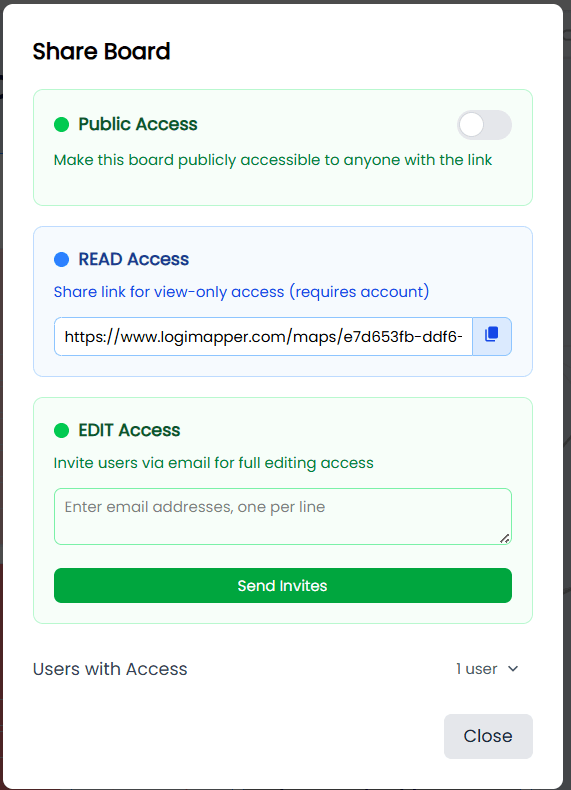
Linking a map from a report
Because every map lives at its own URL, you can paste that hyperlink straight into a report, a proposal, a slide, or any other document. Readers click through to the live, interactive map rather than a flat image, so they can pan, zoom, and follow the highlight feature for themselves.
Edit access code
To let someone edit a specific map, generate an access code from the Share modal. Send them the code (and the URL). They paste the code at /access and gain edit access to that one map. Codes can be revoked from the same modal at any time.
Exporting
LogiMapper can export the current map in three formats. All three are reached from the toolbar.
- PNG. A raster image of the whole map. The most reliable way to drop a map into a slide deck or report. Use this rather than a screen grab; PNG export uses the full canvas, not just what’s on screen.
- PDF. A page-fitted version of the map. Workable, but if a map is wide it’s often easier to use PNG and place it in a layout tool yourself. Treat PDF as a quick option, not the default.
- JSON. The raw map structure. Useful for backups, for forking the map into a new account, or for moving content between environments. Re-import a JSON file from the Create page.
Hold on to your URLs
Every map is tied to your account and shows up in your map library, so you don’t need to worry about losing it. That said, it’s good practice to paste the URL of any map you share into the project folder alongside the rest of the project’s working documents, so the wider team can find it without having to dig through their library.
If you create a new version using Save As, the new map has its own URL. Save the new URL alongside the old one so people don’t accidentally view a stale version.