Organising your work
Once you’ve made more than a handful of maps, you’ll want some structure around them. LogiMapper organises maps into Projects, and Projects into Clients. The activity feed keeps you in the loop on what’s changing.
Clients → Projects → Maps
The hierarchy is straightforward:
- Clients represent the organisation a piece of work is for. A consultancy creating maps for two government departments would have two Clients.
- Projects live under a Client. They’re the bundles of work you’d show up to a kickoff meeting to talk about: a strategy review, a programme evaluation, a business case.
- Maps live under a Project. A single Project usually has several maps: an overall theory of change, plus narrower maps for sub-programmes or workstreams.
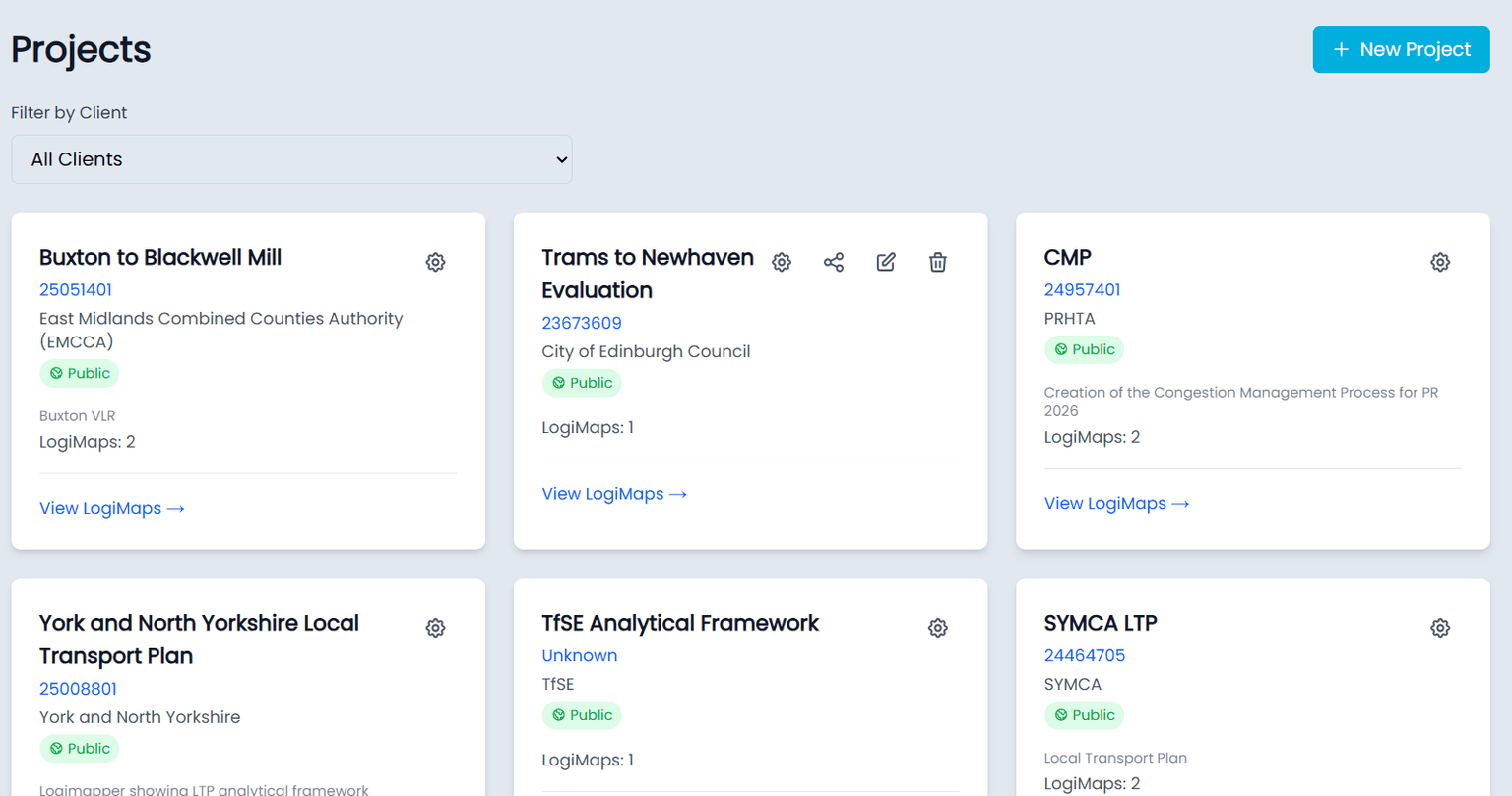
Creating clients and projects
You need the Creator role for this. From /clients, add a new client with a name and any notes you want. From /projects, create a project under one of your clients. New maps can then be assigned to that project when you create them.
If you can’t see Clients or Projects in the header, your account isn’t a Creator. Ask an admin to upgrade your role.
My maps
The My maps page is the personal entry point: everything you’ve created or been added to, regardless of project. Filter by client or project to narrow the list, or search by name.
Inviting people to a project
From a project’s page, use Invite to add other LogiMapper users. They receive an invitation in their activity feed; once accepted, they can see and edit every map in the project (subject to per-map sharing settings).
Project invites are the right tool when someone is a long-term collaborator. For one-off external reviewers, prefer a public read-only link or a single-map access code; see Sharing & exporting.
Activity feed
Your activity feed shows invitations to accept and a running log of changes on projects you’re part of. The header avatar shows a red dot when there’s something new to look at; click through, accept any invitations, and the dot clears.